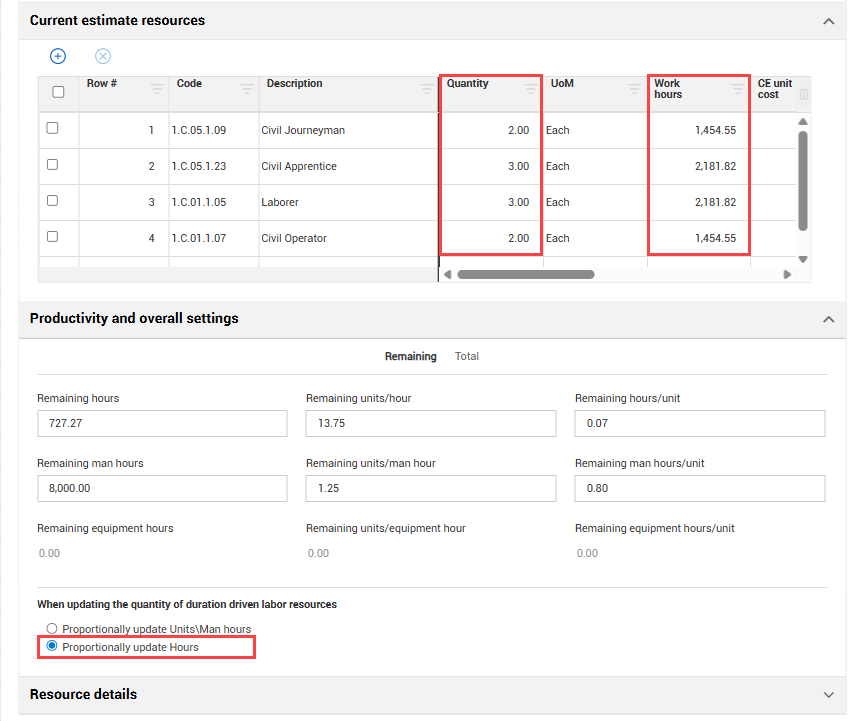
Current Estimate Resources tab
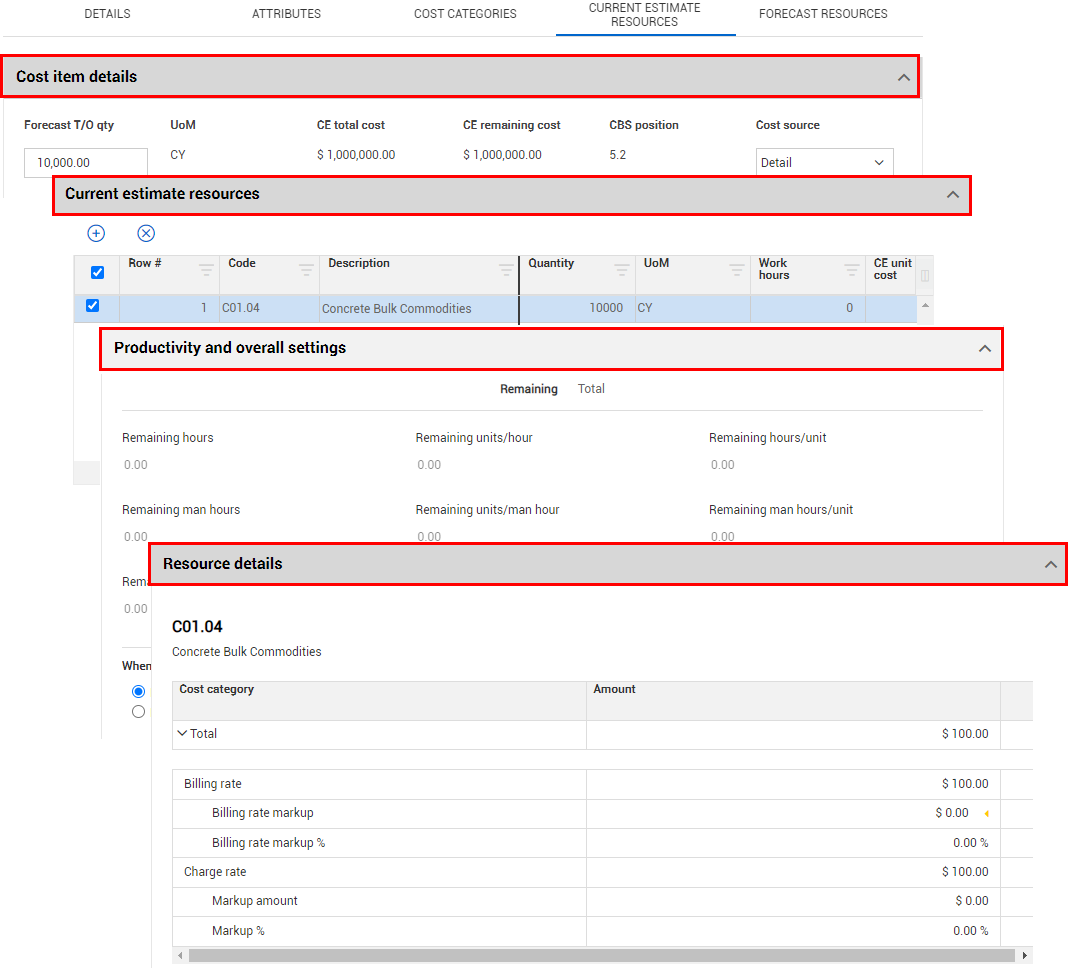
The Current Estimate Resources tab is where you can view and manage the CE resources for terminal cost items.
From the Current Estimate Resources tab you can view and manage:
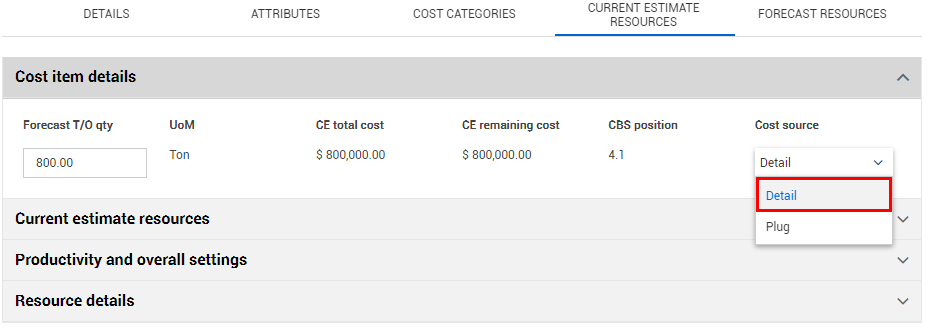
To see a total sum of the resources in Current estimate resources, you must have the Cost Source set to Detail.
When the cost item’s cost source is set to Plug, you will not use the Current Estimate Resources tab. Instead, costs are “plugged” or entered directly into cost categories on the Cost Categories tab of the cost item.
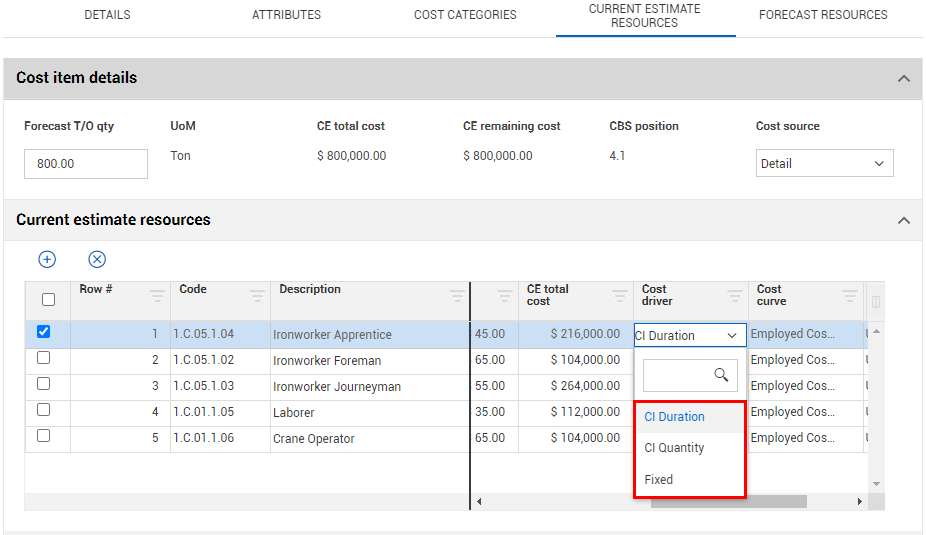
Cost Driver
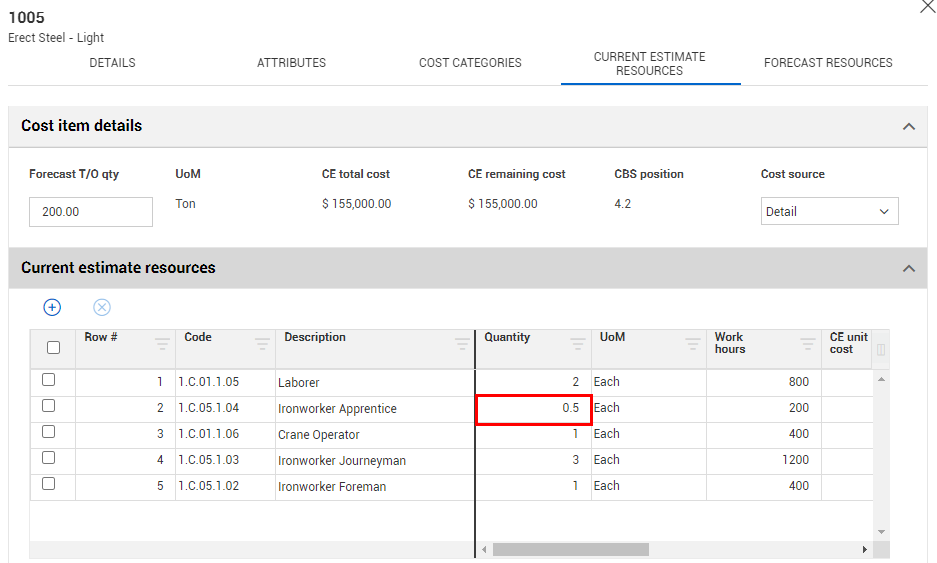
Each type of resource has a default cost driver. For example, Labor resources are duration driven so their default cost driver is CI Duration, meaning their costs are driven by the duration of the cost item. If you want a resource to only be assigned to a specific cost item or work activity for half the time, you can change its quantity to .5 and it will be driven by half of the cost item’s hours.
Updating the total quantity of a resource with CI quantity as the cost driver will not auto-update the hours.
To enter work hours manually for the employed resource, you can change the Cost Driver option to CI Quantity or Fixed.
If you change the Cost Driver to CI Quantity, the fields below will not be editable. It causes the adjusted duration to become zero or read-only. However, it can be editable if it does make a cost impact.
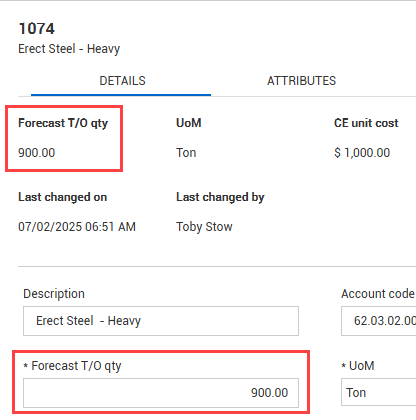
With CI Quantity as your cost driver for your resources, you can adjust the Work Hours manually, where previously that column was read-only. For example, perhaps you want your Laborer to work specifically 80 hours. The Forecast (T/O) Qty is very significant when it comes to quantity driven resources. It determines how the cost is driven and what affects the cost of that specific line item.
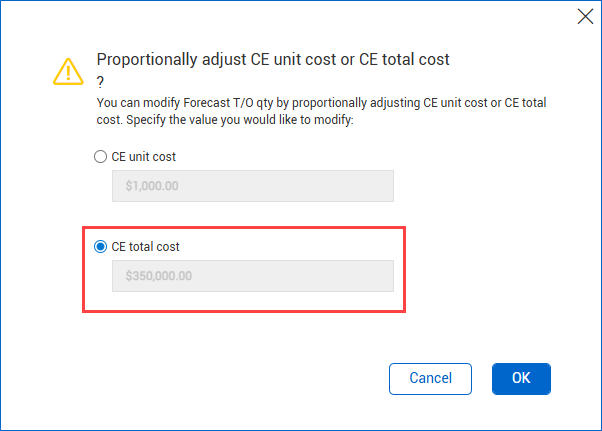
For example, perhaps there is a scope change and you need to change the Forecast (T/O) Qty from 900 to 350.
A dialog box shows to choose whether it will affect the CE unit cost or CE total cost. Typically, you keep the unit cost constant and adjust the total cost.
Note that the Welder’s work hours adjust because they are driven by the Forecast (T/O) quantity of the cost item.
When the Cost Driver is set on Fixed, you can only update the resource’s hours by typing into the resource itself and updating the work hours directly.
Many of the numbers are tied to equations under the Productivity resources below. If you edit the numbers, it will have an impact on the resources depending on the cost driver.
Productivity and overall settings
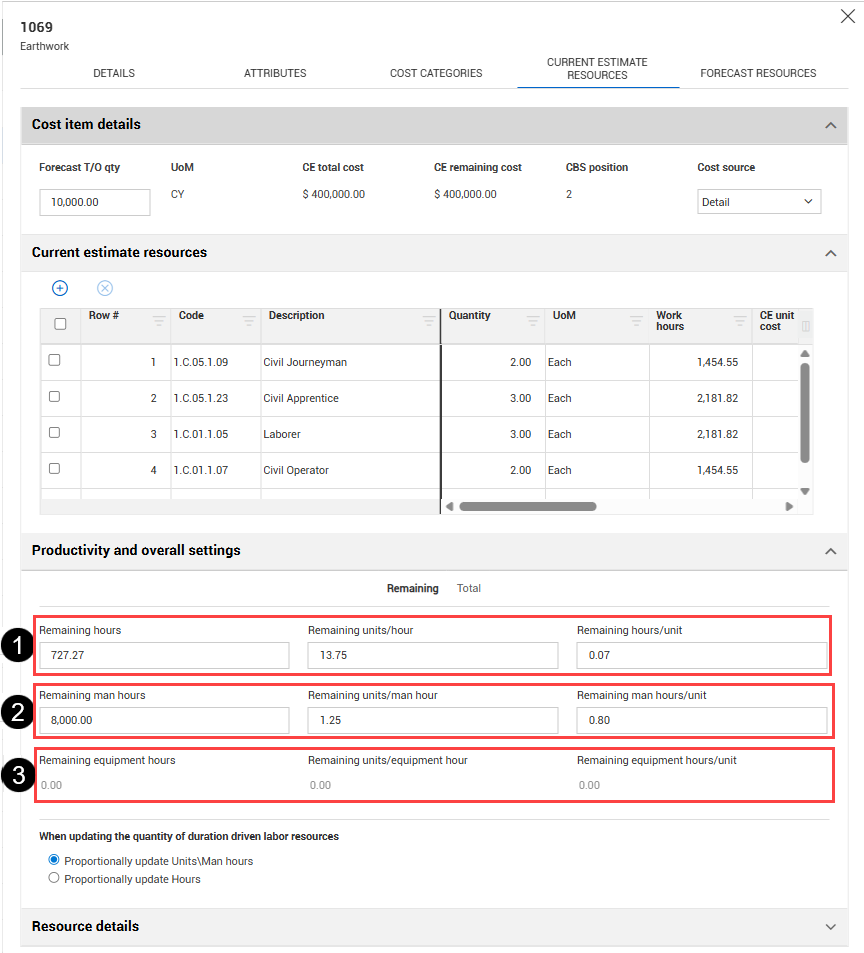
On the Current Estimate Resources tab, you can manage duration and quantities for the following calculations:
| |
Calculation |
| 1 |
Remaining hours/units |
| 2 |
Remaining man hours/units |
| 3 |
Remaining equipment hours/units |
Total duration hours (Remaining hours) are used to calculate labor and equipment resource work hours where:
-
Work Hours (resource) = Hours (total duration) x Quantity (resource)
-
Total Remaining man hours = Sum (Labor Resource Work Hours)
-
Total Remaining equipment hours = Sum (Equipment resource Work hours)
Total remaining duration hours are calculated using either the total value or one of the following unit rate options in the Productivity and overall settings section:
-
Remaining man hours
-
Unit rates are proportionate to total value based on Forecast T/O qty.
-
Total duration Remaining hours are proportionate to total Man hours based on Labor resource quantity.
-
Total Remaining equipment hours are proportionate to total duration hours based on Equipment qty.
When one value is entered, all other totals and unit rates in the Productivity and overall settings section are calculated based on that entry.
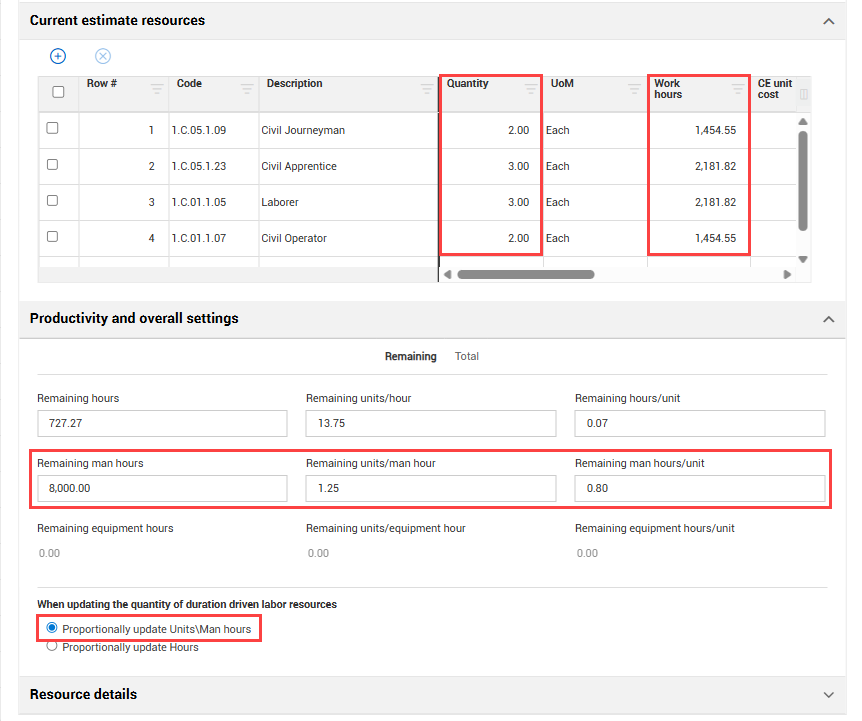
Updates to resource quantities
The options for the setting When updating the quantity of duration driven labor resources, control how work hours are calculated when a resource quantity is updated: